WHA'S AFF GUIDE
Right, Whit's This Then
Awrite ya wee legend. This guide's gonnae show ye how tae stick in a leave request fur yer gaffer tae rubber-stamp, how tae bin a leave request when ye change yer mind, an how tae submit yer overtime so ye actually get paid fur aw the graft ye've been daein. Nae excuses noo, it's aw right here.
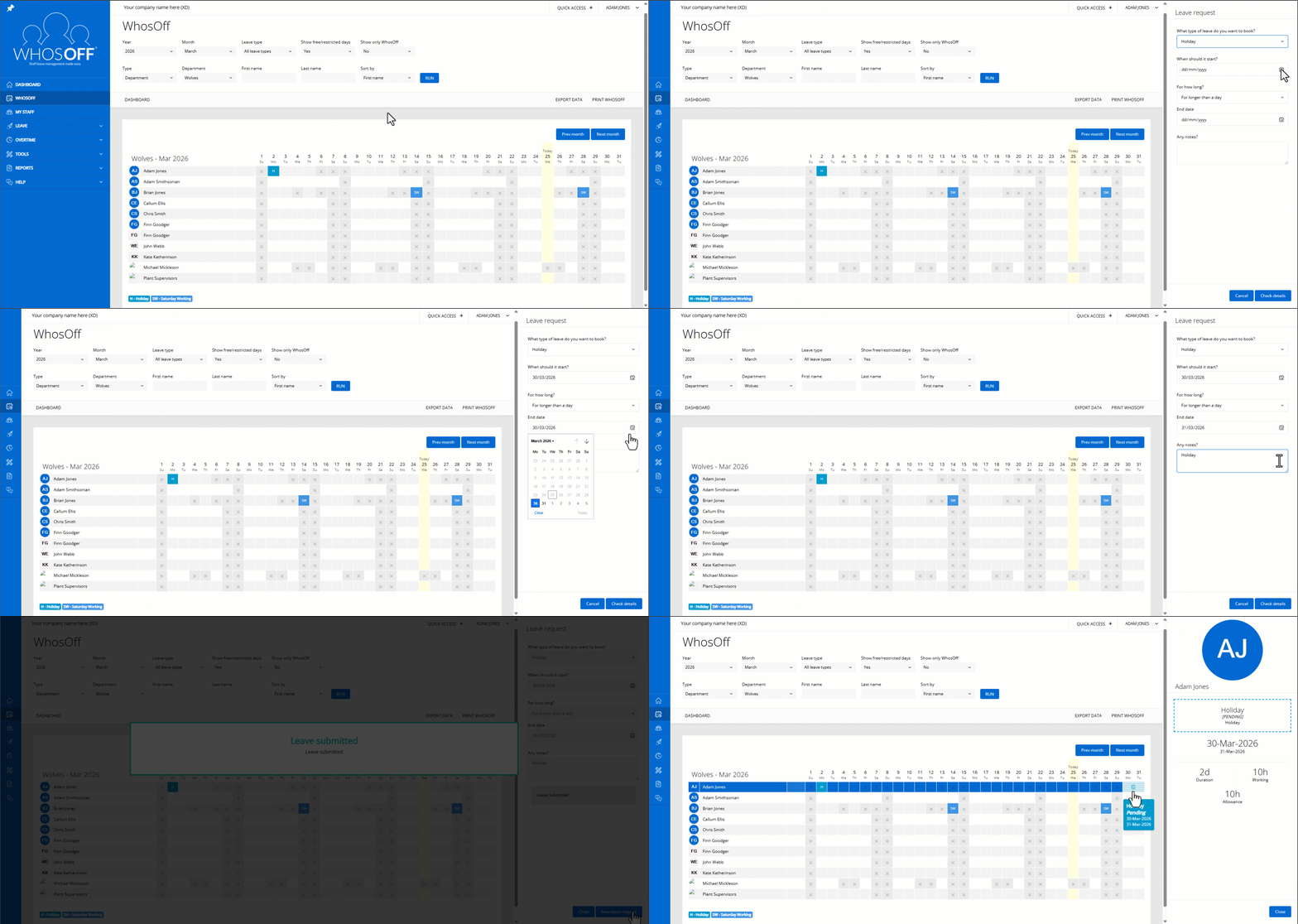
HOW TAE BLAG SOME TIME AFF
Log intae yer WhosOff account, obviously. Ye cannae dae hee-haw if ye're no logged in, ya numpty.
- Click the plus (+) up in the top right corner ae yer screen (or tap Request Leave alang the top ae yer Dashboard if ye're feelin fancy)
- Fae the Quick Access menu, gie Submit Leave Request a wee click
- Yer Right Hand menu'll pure appear oot the side (this happens aw ower WhosOff, by the way — yer Right Hand menu is where ye dae aw yer faffin wi a leave request)
- Right, tae actually get it done, crack on like this;
- Whit type ae leave dae ye want tae book? - Holiday / Vacation, ya jammy sod
- When's it kickin aff? - Pick yer Start Date
-
Fur how long? - There's a few options fur ye:
- Aw day - Book aff the hale bloody day
- Just part ae the day (half day) - Book hauf the day, either AM or PM. Lang lie-in or an early bolt, yer choice
- Fur longer than a day - Fur a proper break — chuck in an End Date an away ye go
- Any notes? - Stick a wee message on it if ye fancy. Nae need tae write an essay
- Wance ye've got aw yer details in, gie Check Details a click
- If ye've booked a workin day, the system'll show ye how much ae yer allowance is gettin chibbed aff (dependin on yer leave type settings).
- If ye're happy, batter Submit Leave an it's away. Or fix any bits ye've buggered up first. Or, if ye've completely bottled it, hit Cancel an forget the hale thing.
Wance ye click Submit Leave ye'll get a wee confirmation message. Dependin on the settings, it might get fired ower tae yer gaffer fur approval by email, an ye'll get an email an aw confirmin ye've done the deed.
HOW TAE CHUCK IT IN THE BIN
Aye, ye can cancel leave in WhosOff, but how ye dae it depends on whit permissions ye've got. Here's the rundown fur every situation. Wee heads-up: ye cannae edit yer ain leave requests — if ye've buggered it up ye've got tae cancel it an stick a new wan in. Pain in the arse, but there ye go.
FUR THE REGULAR TROOPS
As a staff member ye can usually cancel yer ain leave if it's no happened yet or already started, approved or no. BUT yer company might've set a cancellation period, meanin ye've tae gie a certain amount ae notice. So sometimes, even fur future dates, ye'll be telt tae get tae — nae cancellin fur you.
LEAVE THAT'S NO HAPPENED YET
- Log intae yer WhosOff account
- Click Leave on the Left Hand menu
- Click the My Leave option
- Hunt doon the leave ye want tae bin (use the Date Range filters up the top if ye cannae see it)
- Click the Cancel option next tae the right wan, an the system'll ask ye "ye sure aboot this, pal?" (see the wee picture below). If there's nae Cancel option showin, then tough luck — ye cannae dae it yersel an ye'll need tae gie yer line manager or a super user a shout.
- Wance ye've confirmed it, the system tells baith you an yer approver by email. An if any allowance got taken aff ye, it gets flung straight back intae yer pot. Result.
.gif)
LEAVE THAT'S BEEN AN GONE
Any leave that's already passed or kicked aff has tae be nuked by a super user. If ye ARE a super user, follow the steps above tae cancel some other bugger's leave. If ye're no, then ye'll need tae go cap in hand tae a super user in yer company an ask them nicely.
HOW TAE CLAIM YER OVERTIME
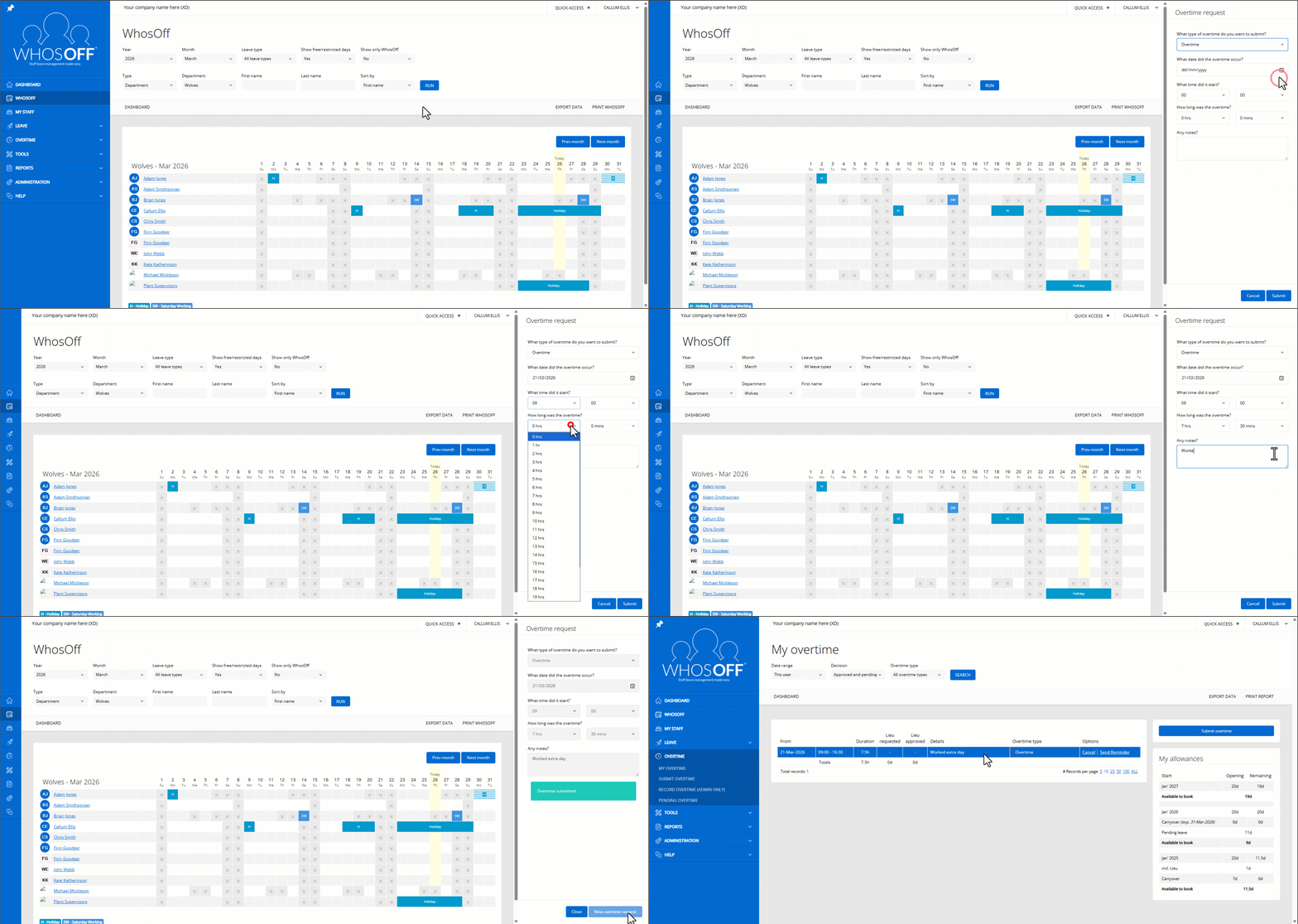
In WhosOff ye can submit any overtime ye've grafted an get it sent tae yer approver fur the nod. Ye might even be able tae claim some Lieu Time back ontae yer Remaining Allowance — free time aff fur daein extra, no tae be sniffed at.
TAE SUBMIT YER OVERTIME
- Log intae yer WhosOff account
- Click the Quick Access (+) icon in the top right corner (or tap Submit Overtime alang the top ae yer Dashboard)
- Fae the Quick Access menu, click Submit Overtime Entry
- Yer Right Hand menu appears again (same patter as before — the Right Hand menu is where ye sort oot an overtime request)
- Right, get crackin like this;
- Whit type ae overtime ye submittin? - Time Off In Lieu
- Whit day did ye dae the overtime? - Pick yer Start Date
- Whit time did it start? - Bung in the Start Time
- How lang wis the overtime? - Pick how long ye grafted (max 24 hours, in hauf-hour chunks)
- Fancy some lieu time back? - Lets ye pick how much Lieu Time ye want back, dependin on yer Allowance Type (Days or Hours)
- Any notes? - Stick a wee message on it if ye like
- Wance it's aw in, gie it a wee double-check (measure twice, cut wance an aw that) an batter Submit. Fix anythin that's wrang first, or hit Cancel tae bin the hale thing.
Wance ye click Submit ye'll get yer confirmation message. Dependin on the settings it might get fired tae yer approver by email fur the nod, an ye'll get an email confirmin it an aw. Sorted. Away an pit the kettle on.